

Step 1 of 2
First, what this loan costs What happens after you continue
Connect the chequing account your pay goes into and take a photo of your ID. Then sign your loan agreement online and get funded instantly by Interac e‑Transfer.
-
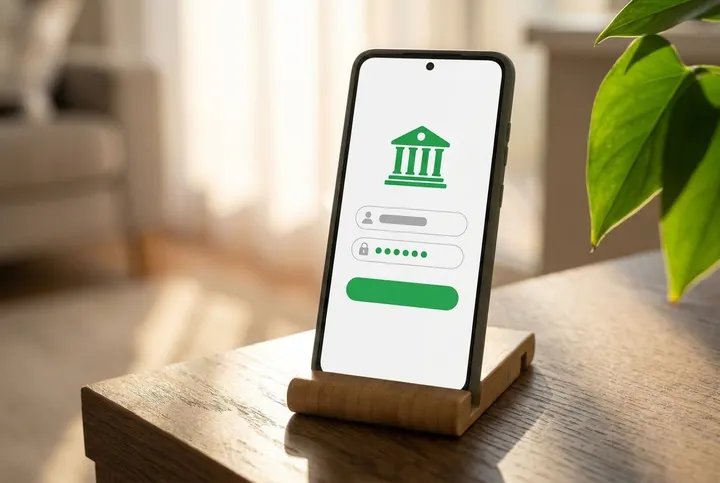
1. Connect your bank account
-
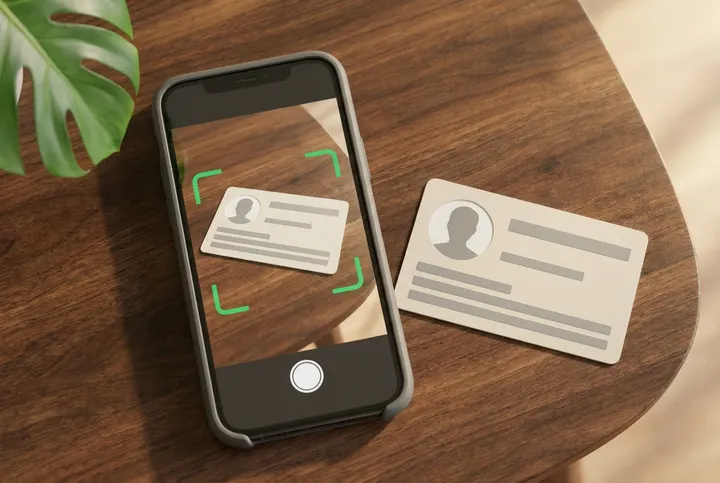
2. Verify your identity
-
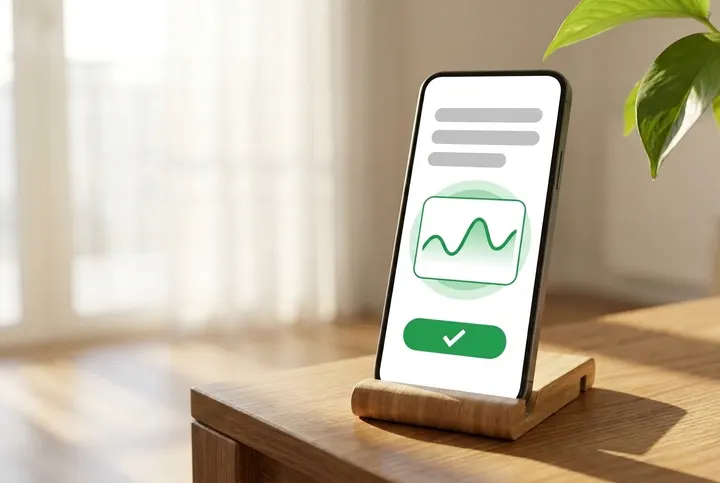
3. Sign your agreement
-
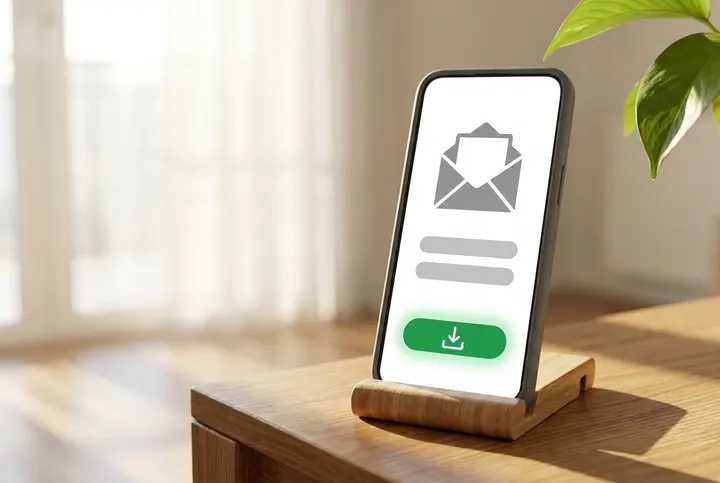
4. Get funded instantly (see the note under the pictures)
We check every application. Steps 3 and 4 happen only if you are approved.
* We send the e‑Transfer when you sign your loan agreement. You may need to accept it, and your bank may take longer to show the money in your account.
Apply in minutes. Get funded instantly.

-
1. Connect your bank
-
2. Photo ID
-
3. Get funded instantly
See each step in pictures
These pictures are examples. Your screen may look different. We check every application. Not everyone is approved.
1. Connect your bank 10 pictures
-
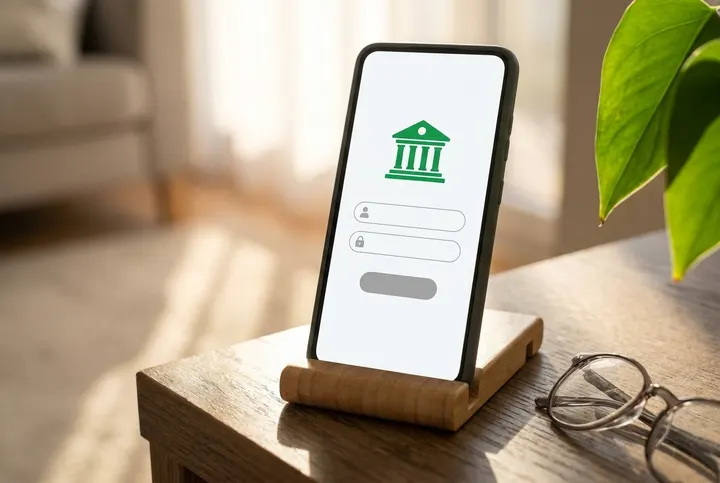
1. Have your sign-in ready
You need your online banking username or card number, and your password, for the chequing account your pay goes into.
-
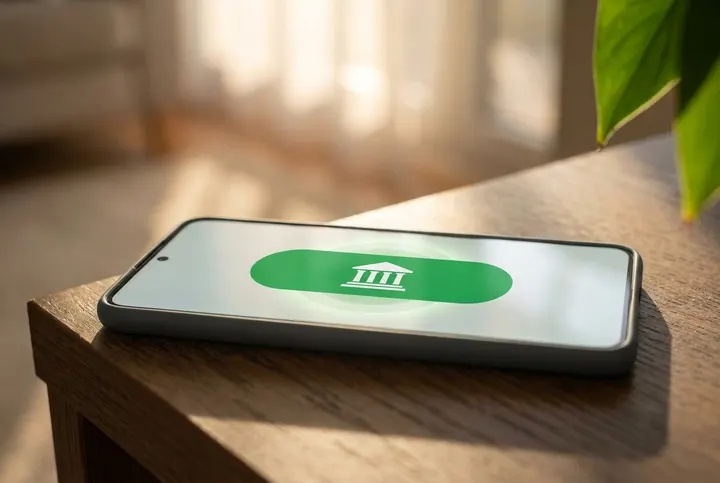
2. Tap to connect your bank
Tap the green button. A secure screen opens, run by a bank-checking company we use. You sign in to your bank there.
-
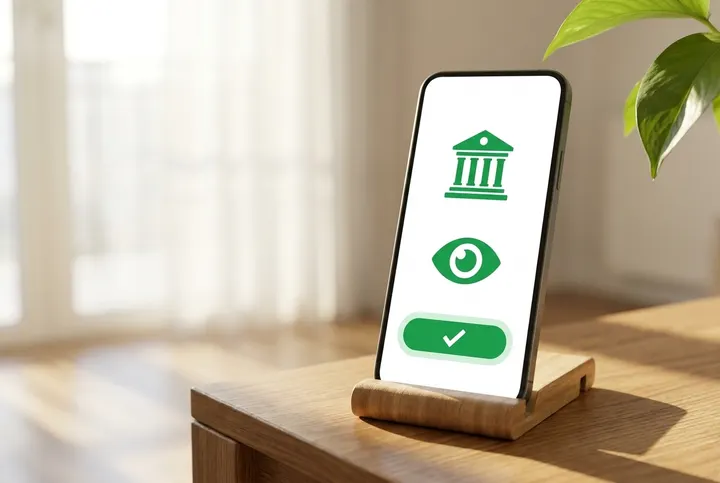
3. Read, then agree
Read what you are asked to share. If you agree, tap the button. We can then see your name, your account details and your past transactions. This connection cannot move money. If you do not agree, stop and contact us.
-
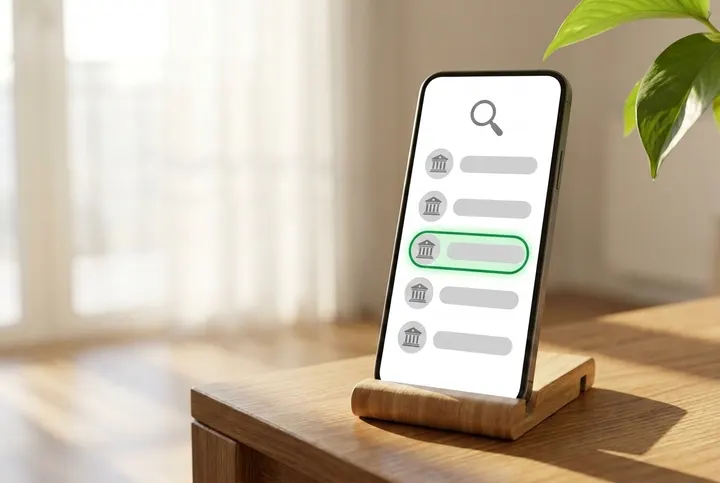
4. Pick your bank
From the list, choose the bank your pay goes into.
-
5. Sign in yourself
Type your username or card number and your password yourself, on that secure screen. We will never ask for your password by phone, email or text.
-
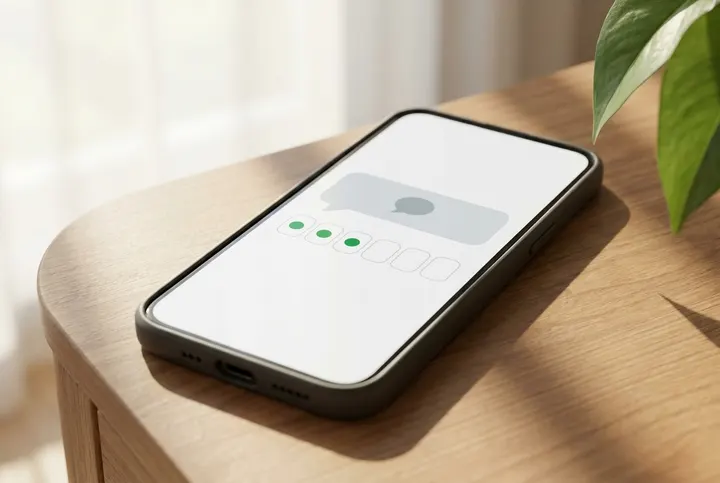
6. Your bank may ask for a code
Your bank may send you a code or ask you a question. Type the code or the answer. Not every bank does this.
-
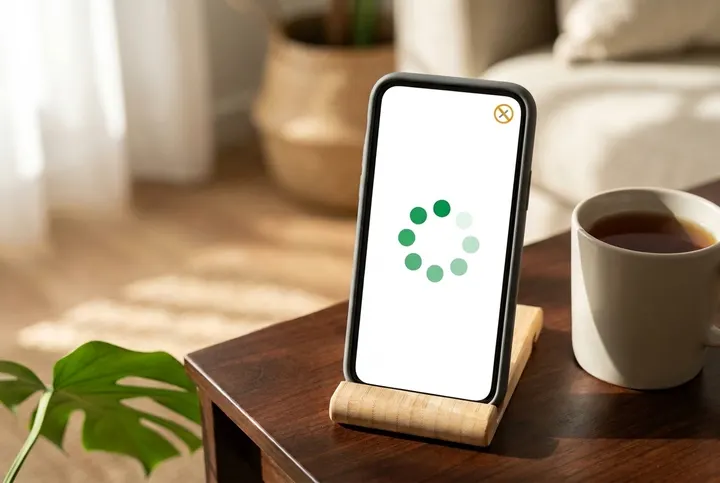
7. Wait. Do not close it
While it loads, wait. Do not close the bank screen or the first page.
-
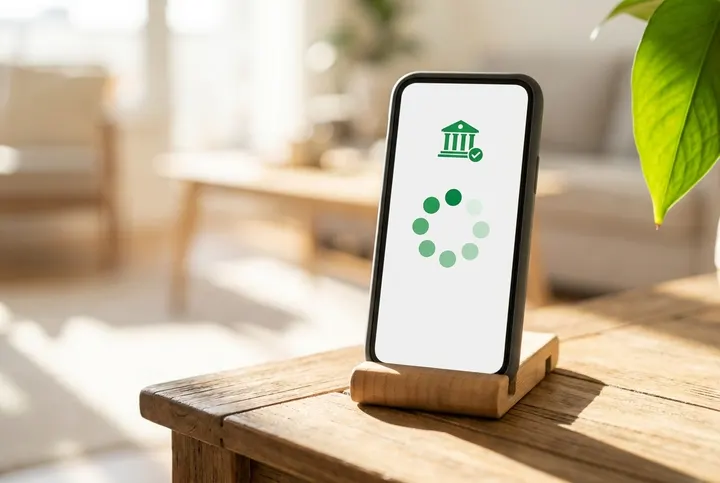
8. Bank screen closed? Stay
When the bank screen closes, stay on the page and wait. The page tells you what comes next. This is not the loan decision yet.
-
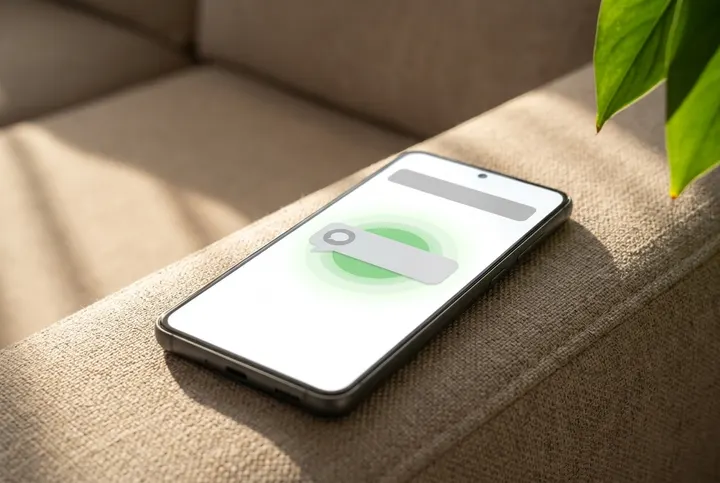
9. We may text you
If the page says you can leave, keep your phone close. We may text you a link to carry on. We never ask for your bank password by text.
-
10. Rather not connect?
Do not want to connect your bank? Stop here and contact us. We will tell you if bank statements can work instead.
2. Photo ID check 10 pictures
-

1. Get your ID card
Get your government photo ID. Use the real card, not a copy or a picture of it.
-

2. Lay it flat
Put the card on an empty table in a bright place.
-
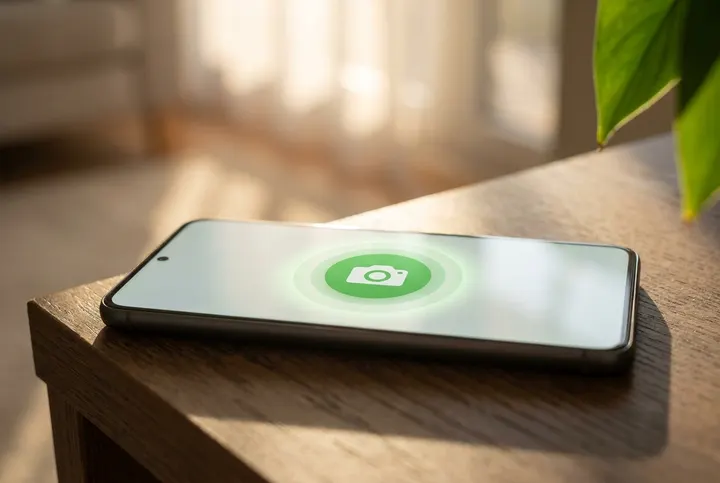
3. Start the camera
Tap the button to start. If your phone asks to use the camera, say yes.
-
4. Photo of the front
Hold your phone level above the card. Fit all four corners in, then take the photo.
-
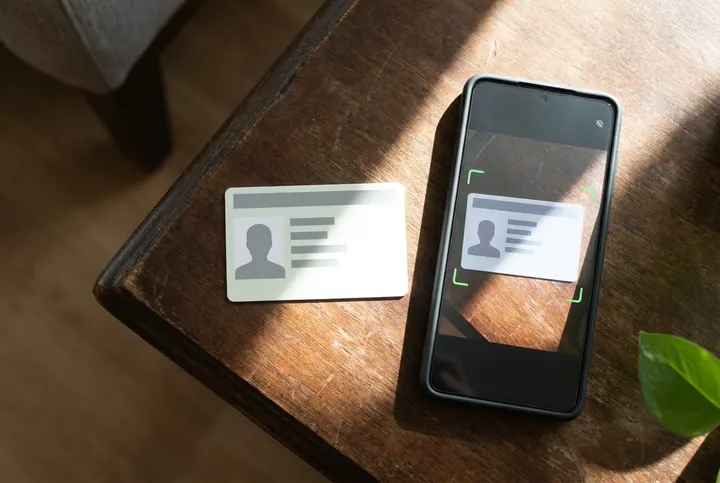
5. No shine on the card
If light shines off the card, move the card out of the light. Then take the photo again.
-
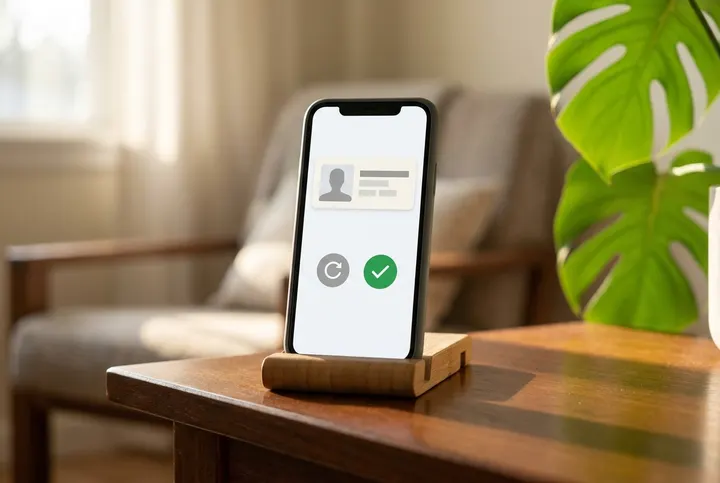
6. Check your photo
Look at your photo. Can you read every word on the card? If not, take it again.
-
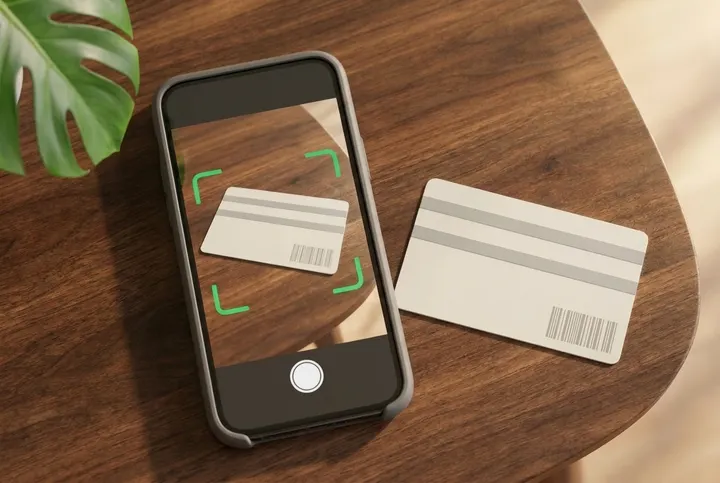
7. Now the back
Flip the card over. Take a photo of the back the same way.
-
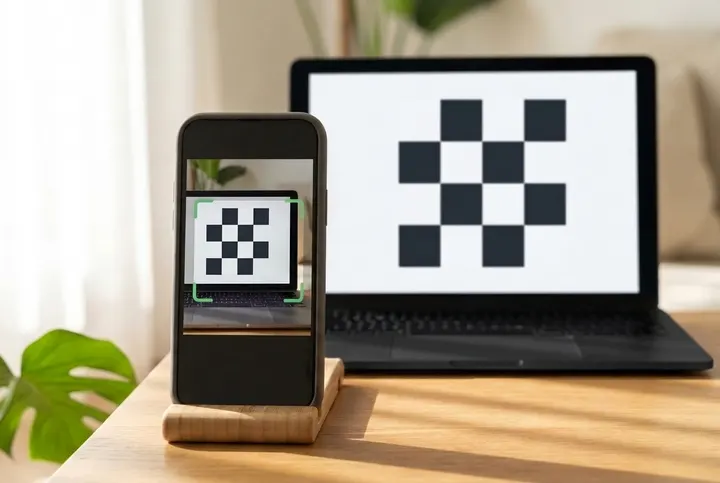
8. Using a computer?
If the screen shows a square code, point your phone camera at it. Then tap the link that comes up on your phone.
-
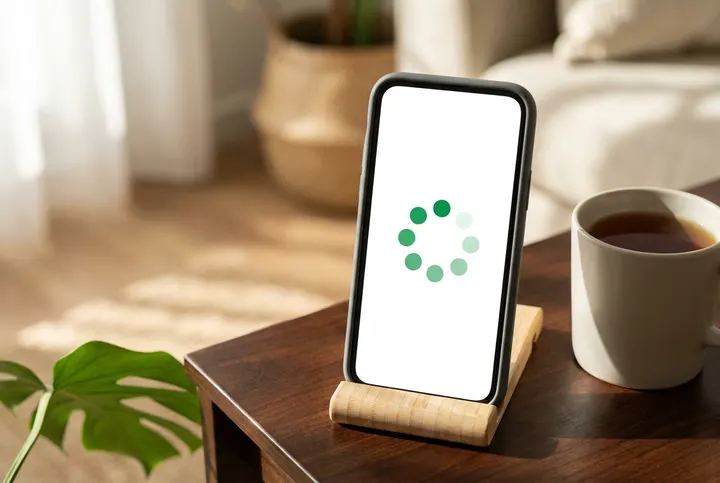
9. Keep the first page open
Do not close the first page. Leave it open until your photos are done.
-
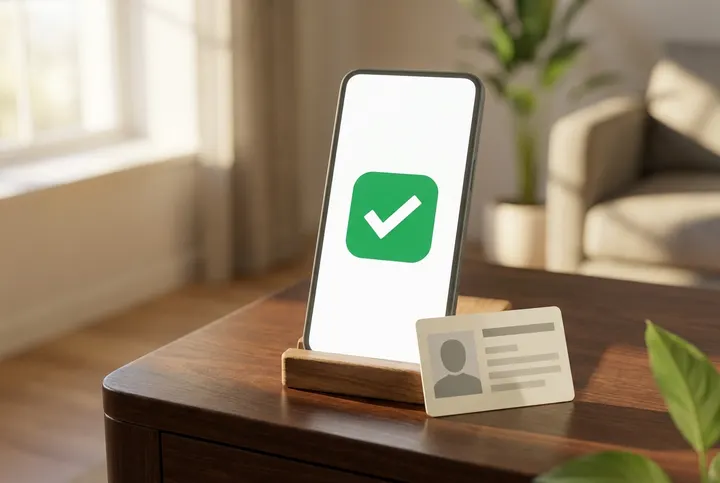
10. Your photos are in
If you see a check mark, we got your ID photos. It does not mean your loan is approved.
3. If approved: sign and get your money 10 pictures
-
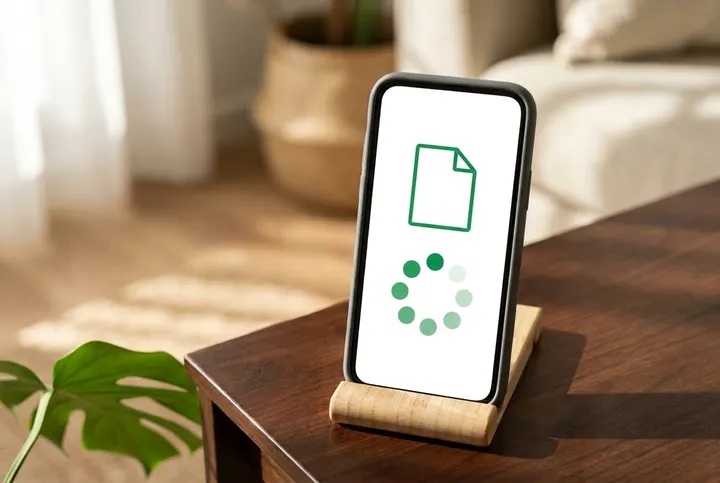
1. If you are approved
We check your application first. Not everyone is approved. If you are approved, your loan agreement opens on the page. Wait for it.
-
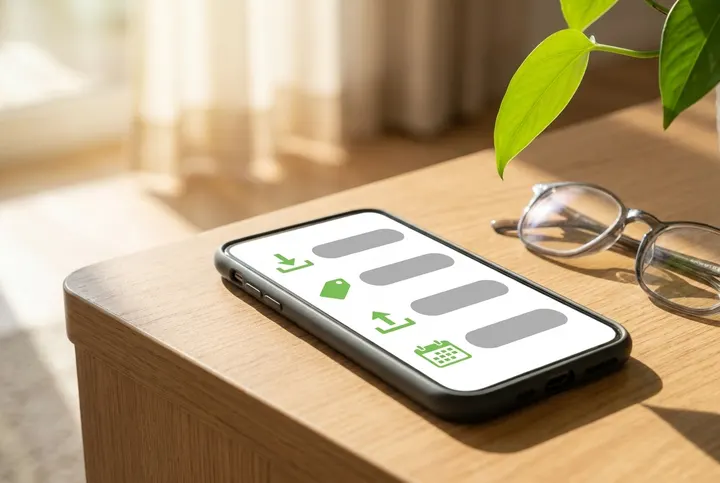
2. Read before you sign
Look for four things: how much you borrow, what it costs, how much you pay back, and the day you must pay. You can still say no.
-
3. Sign where it asks
Sign in every place the agreement asks you to. Then tap the button to finish.
-
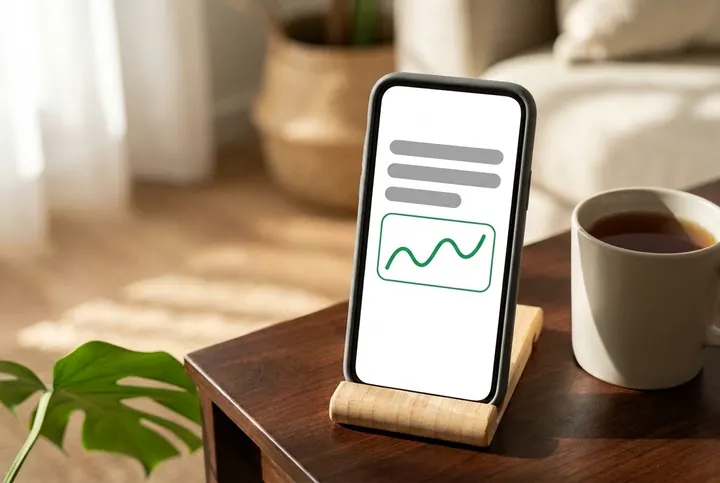
4. Signed? Stay on the page
After you sign, wait. Keep the page open. Do not sign again. The screen may look the same at first.
-

5. Keep your phone on
Keep your phone on and near you. We send text messages to the phone number you gave us.
-
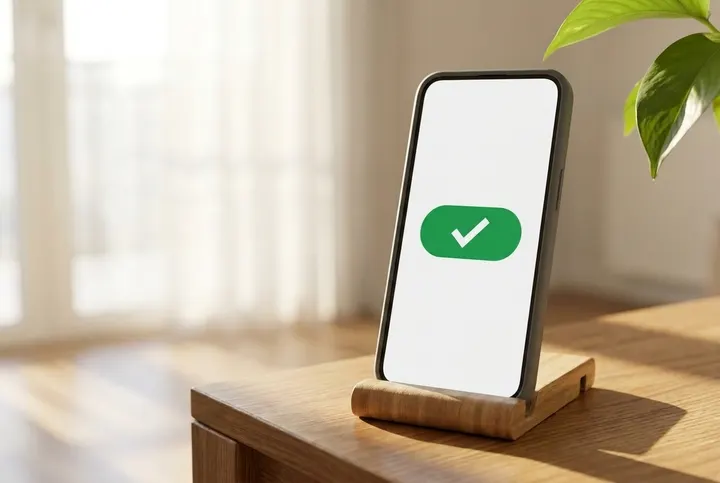
6. Watch the page
The page tells you what is happening. If it says your money was sent, look for our message. If it says anything else, wait. Not sure? Contact us.
-
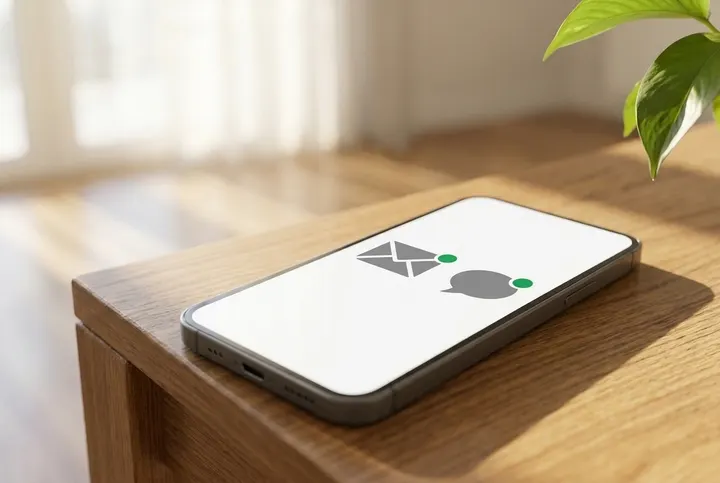
7. Find the deposit message
If you are approved and you have signed, look for a message about your money. Check your text messages and your email, the junk folder too.
-
8. Accept your deposit
Open the message. If it asks you to accept the deposit, tap the button or the link. Some banks put the money in by themselves.
-
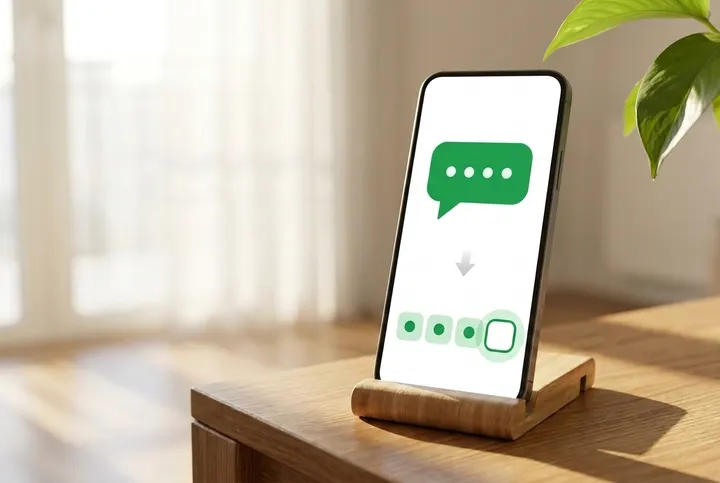
9. Type the code
If the page asks for a code, type the 4-digit code from your text message. Never give that code to anyone.
-
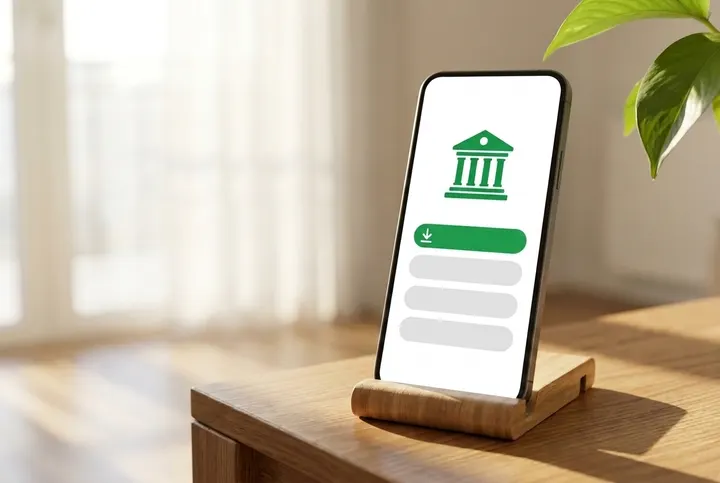
10. Look in your bank account
If you are approved and you accept the deposit, look in your own bank account for the money. If it is not there, contact us.
Read‑only bank connection You are applying for a 14‑day loan.
Welcome back. Your application is saved. Here is the cost of borrowing again. Press Continue and enter your mobile number to pick up where you left off.
Instant Credit S.E.C — licensed as a Payday Lender in Ontario under the Payday Loans Act, 2008. Licence no. 4741682, expiring September 3, 2027. 2233 Argentia Road, Unit 302, Mississauga, ON L5N 2X7. Verify this licence or make a complaint with the Ministry of Public and Business Service Delivery, Consumer Services Operations Division at (416) 326-6203 or CPOLicensing@Ontario.ca.